How to Connect Google Ads and Meta Ads to Claude

By Robin Laseur
Google Ads and Meta Ads each give you a detailed view of campaign performance. The friction starts when you need to answer one question across both platforms. What did you spend last week? Which campaigns changed the most? Did the increase in cost come from Google, Meta, or both?
Answering those questions usually means opening two dashboards, matching the reporting periods, checking the currencies and moving the figures into a spreadsheet or another reporting tool. A follow-up question can send you back through the same process.
Claude can provide a shared place to analyse both channels, provided it has a secure way to reach their data. For Shopify merchants, Commerce365 provides that connection. This guide explains how to connect both advertising accounts, confirm that Claude can reach the intended data and build your first cross-channel view.
Why is monitoring Google Ads and Meta Ads together difficult?
The challenge is not a lack of reporting. It is that the reporting lives in two separate systems.
Google Ads organises data through resources such as campaigns, ad groups, ads and keywords. Meta Ads uses campaigns, ad sets and ads. Even when both platforms display a metric with a similar name, the figures may be based on different conversion actions, attribution settings or reporting windows.
This becomes visible as soon as you try to compare the channels. Before putting two performance figures next to each other, you need to check:
whether both reports cover the same dates;
whether the accounts use the same currency and timezone;
which conversion action each platform is reporting;
which attribution window and model apply; and
whether the data is being compared at campaign, ad group, ad set or ad level.
A spreadsheet can hold the final numbers, but it does not remove that preparation. It also freezes the analysis around the fields you exported. If someone asks a follow-up question, you may need another filter, breakdown or export.
How can Claude become a shared advertising dashboard?
When Claude has access to connected advertising tools, you can ask it to retrieve available data from both platforms and organise the results inside one conversation. For example, you could ask for campaign spend from the previous seven days, keep Google and Meta in separate tables and then ask which campaigns changed most compared with the preceding period.
This creates a conversational dashboard: a reporting view generated for the question you are asking. You can change the dates, add a breakdown or investigate a movement without rebuilding the original table from scratch.
It is useful to distinguish this from a permanently updating business intelligence dashboard. A Claude conversation retrieves data when a prompt invokes the relevant tool. Scheduled refreshes, stored reporting models and automated distribution require an additional workflow.
Claude also needs a route to the source data. Naming an advertising platform in a prompt does not give Claude access to the account. A connector must authenticate with the source, expose supported tools and respect the permissions granted by the user.
How Commerce365 connects both ad platforms to Claude
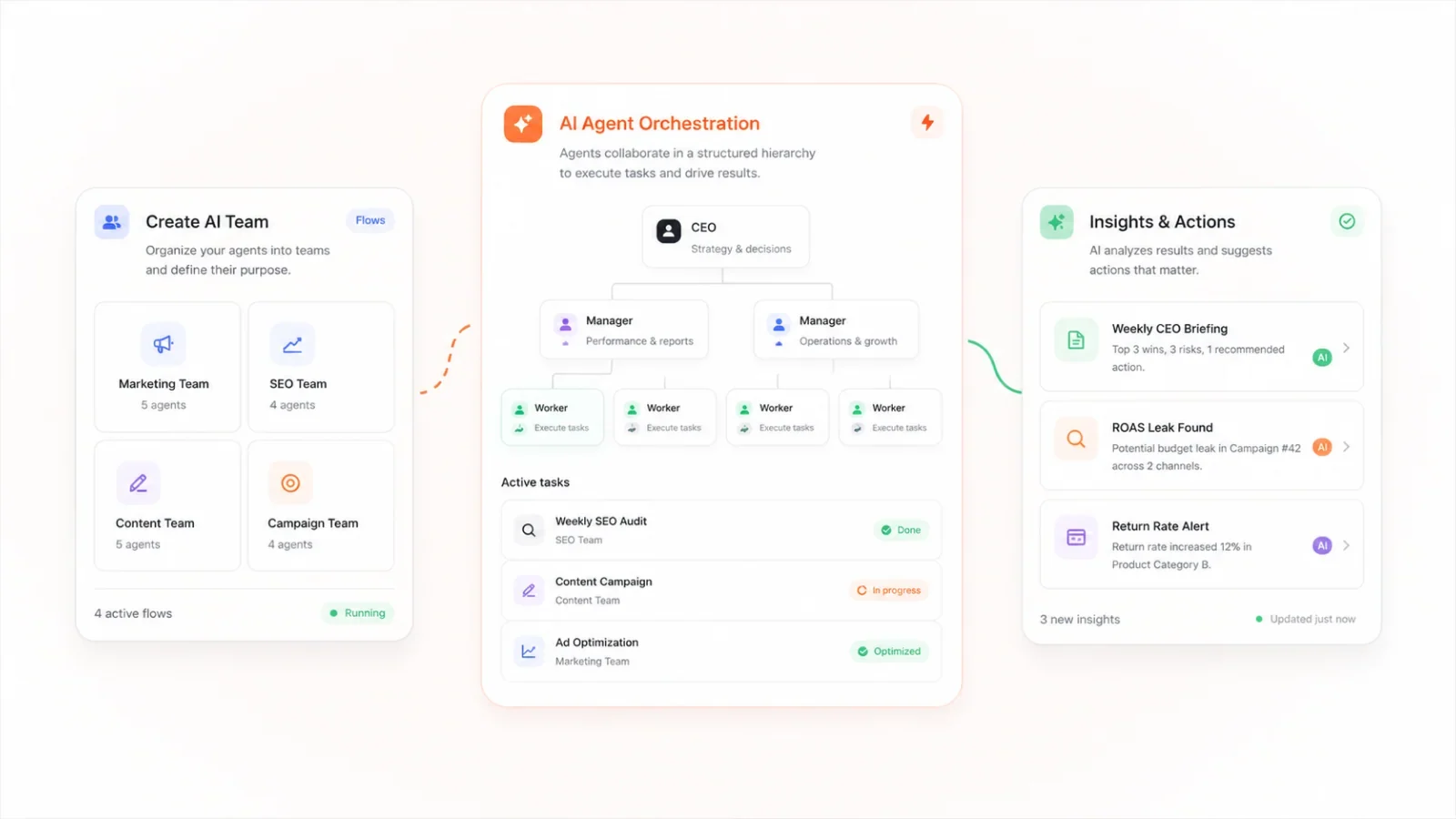
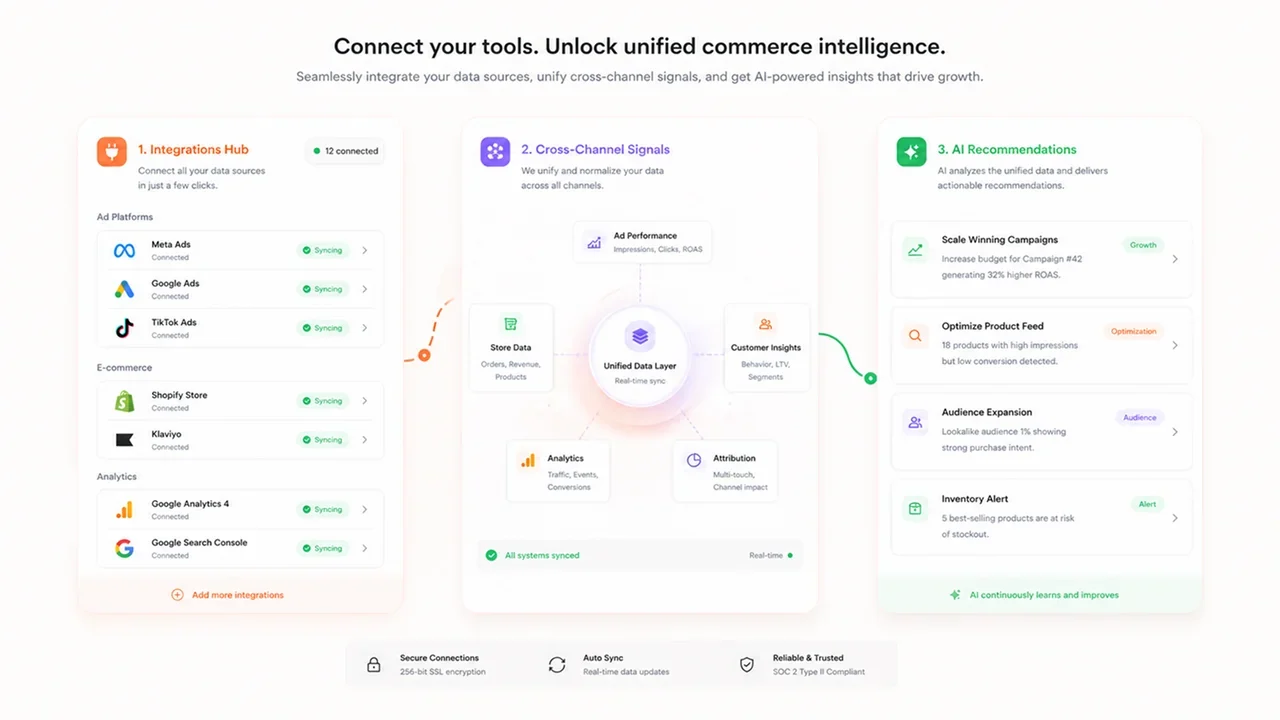
Commerce365 is a Shopify app developed by Flatline Agency. Its documented integrations include Google Ads, Meta Ads, Shopify, Klaviyo and analytics sources. It connects supported platforms through OAuth and makes its tools available to Claude through the Model Context Protocol, or MCP.
The connection has two stages:
You authorise Google Ads and Meta Ads inside Commerce365.
You add the Commerce365 remote MCP connection to Claude.
MCP is the mechanism that allows Claude to discover and call tools provided by an external service. When your question requires advertising data, Claude can call an available Commerce365 tool, receive the result and organise it in the conversation. Anthropic describes remote MCP servers as the intermediary between Claude and external applications.
The platforms remain the original sources of the advertising data. Commerce365 provides the authorised connection and available tools; Claude interprets and presents the returned information.
What do you need before starting?
Prepare the accounts and identifiers before opening the connection flow.
Commerce365 and Shopify
A Shopify store on which you can install or access Commerce365.
Permission to approve the app installation.
Access to the Commerce365 integrations and Claude connection settings.
Google Ads
A Google identity that can access the intended Google Ads account.
The customer ID of the account you want to analyse.
Access through the account itself or a manager account.
Google provides several Google Ads account access levels. Read-only, Standard and Admin users can view campaigns and run campaign performance reports, while campaign editing requires Standard or Admin access.
Meta Ads
A Facebook identity with access to the relevant business portfolio.
Access to the intended Meta ad account.
The Meta ad account ID you expect to connect.
Claude
A Claude account with connector access.
Permission to add a custom connector.
Organisation Owner involvement when required for a Team or Enterprise workspace.
Keep the Google Ads customer ID and Meta ad account ID nearby. They provide the simplest way to confirm that the connection reached the accounts you intended.
How to connect Google Ads and Meta Ads to Claude
Step 1: Install Commerce365 on Shopify
Open the Commerce365 listing in the Shopify App Store, select Install and review the access requested for your store. After installation, open the Commerce365 dashboard.
Before adding an advertising platform, confirm that the dashboard belongs to the correct Shopify store and organisation.
Expected result: Commerce365 loads and its integrations area is available.
Step 2: Connect your Google Ads account
In the Commerce365 integrations area, find Google Ads and start the connection.
Sign in with the Google identity that has access to the intended account.
Review the OAuth permission request.
Select the required customer account if the flow presents more than one.
Return to Commerce365 and check the connected account details.
Compare the account shown in Commerce365 with the Google Ads customer ID you recorded earlier.
Expected result: Google Ads appears as connected to the intended customer account.
If the account is missing, check whether the Google identity has direct access or can reach it through the correct manager account.
Step 3: Connect your Meta ad account
Find Meta Ads in the same integrations area and start its connection.
Complete the Facebook sign-in flow.
Review the permissions requested.
Select the relevant business and ad account if prompted.
Return to Commerce365 and check the connected account details.
Compare the displayed account with the Meta ad account ID you recorded before setup.
Expected result: Meta Ads appears as connected to the intended ad account.
Step 4: Add Commerce365 to Claude
Find the Claude connection flow or remote MCP URL in your Commerce365 account. Use the URL supplied for your organisation rather than copying one from another account.
For an individual Claude Pro or Max account, Anthropic currently documents this route:
Open Customize > Connectors.
Select +, then Add custom connector.
Enter the remote MCP server URL supplied by Commerce365.
Complete the connection and authentication flow.
For Claude Team or Enterprise, an Owner or Primary Owner first adds the connector under Organization settings > Connectors > Add > Custom > Web. Individual members can then find the connector under Customize > Connectors and authenticate their own connection. These paths follow Anthropic's current custom connector instructions.
Expected result: Commerce365 appears in Claude's connector list.
Step 5: Enable Commerce365 in a conversation
Start a new Claude conversation and open the connector menu. Enable Commerce365 for the conversation and review its available tool permissions.
Claude can suggest a connected tool when it matches the request, but you can also enable or disable connectors per conversation. Anthropic documents these controls in its guide to using connectors in Claude.
Expected result: Commerce365 is available to Claude and its tools can be invoked from the conversation.
How do you verify that both connections work?
A connected label confirms that an authorisation flow completed. It does not yet prove that Claude can retrieve the account and fields you expect. Test the connection with a small, verifiable request.
Start by asking Claude to identify the accounts:
Prompt:
Using the connected Commerce365 tools, list the Google Ads customer and Meta ad account available to me. Include the account name, account ID, currency and timezone when those fields are available. State which tool supplied each result. Do not infer any unavailable value.
Check that Claude called the connector and returned the account IDs you recorded before setup. If it responds with general instructions instead of account-specific results, access has not yet been demonstrated.
Next, test one metric over a completed period:
Prompt:
Using Commerce365, retrieve campaign spend from Google Ads and Meta Ads for [START DATE] to [END DATE]. Keep the platforms in separate tables. Include the account ID, campaign name, spend, currency and exact reporting dates. State when a requested field is unavailable.
Open both advertising platforms and compare one campaign against the same account and dates. Use spend for this first test because it does not require you to align conversion definitions. Once the figures reconcile, the connection has passed a practical data check.
How to build your first Google Ads and Meta Ads dashboard in Claude
Begin with a view that keeps the source platforms visible. This makes errors easier to spot and avoids combining figures before you know they are comparable.
Create the cross-channel overview
Use a prompt such as:
Prompt:
Build a Google Ads and Meta Ads performance overview for [START DATE] to [END DATE] using Commerce365. Show the account name, account ID, currency and total spend for each platform. Then show campaign-level spend in separate Google Ads and Meta Ads tables. List the conversion fields available from each source, but do not combine them yet. Cite the source platform for every table.
This produces the foundation of the dashboard: account scope, reporting period, spend and campaign detail.
Add a period comparison
After checking the first view, ask Claude to compare it with an equivalent previous period:
Prompt:
Compare the dashboard period with the immediately preceding period of the same length. Show the absolute and percentage change in spend for each platform and campaign. Include the source figures used in every calculation and flag missing data.
The source figures matter. They allow you to check whether a percentage change came from the correct periods and campaigns.
Add conversion performance after checking the definitions
Before adding CPA or ROAS, ask Claude what each connector field represents:
Prompt:
List the conversion, conversion-value and attribution-related fields available from the connected Google Ads and Meta Ads accounts. Explain the documented meaning of each returned field. Keep platform definitions separate and identify anything that must be checked in the source account.
Only compare conversion performance after confirming that the selected fields represent outcomes that are close enough for the intended analysis.
Prepare the view for a stakeholder
Once the underlying tables are checked, Claude can turn them into a shorter report:
Prompt:
Summarise the verified dashboard for an ecommerce manager. Lead with the largest measured changes, include the figures behind each observation and separate facts from questions that require further investigation. Do not recommend a budget change.
This keeps the summary grounded in retrieved data while leaving commercial decisions to the people responsible for the accounts.
What else can you ask once the dashboard is working?
The connection becomes more useful when the next question can build on the same verified scope.
For weekly monitoring:
Prompt:
Compare spend and the available conversion metrics across Google Ads and Meta Ads for the last seven complete days versus the previous seven. Keep platform figures separate and show which campaigns caused the largest changes.
For a campaign investigation:
Prompt:
Google Ads spend increased during the selected period. Break the change down by campaign and show the current value, previous value and difference. Use only data returned by the connector.
For a data availability check:
Prompt:
List the metrics and dimensions available from Google Ads and Meta Ads through Commerce365. Group them by platform and identify which fields would be required to calculate CPA and ROAS.
For stakeholder reporting:
Prompt:
Turn the verified results into a five-point update. Include the reporting dates, account scope and currency, and place the supporting figures below each point.
These prompts are starting points. Their output depends on the fields exposed by the connected tools and the permissions of the authorised accounts.
Why might Google Ads and Meta Ads results differ?
Claude can put figures next to each other, but proximity does not make them equivalent.
Conversion definitions
One platform may report purchases while another includes leads, add-to-cart events or a broader configured result. Confirm the conversion action behind each field before comparing totals or calculating a blended CPA.
Attribution settings
Google Ads and Meta Ads can assign credit according to different attribution models and windows. View-through and click-through activity may also be treated differently. Both platforms may therefore claim value from parts of the same customer journey.
Currency and timezone
Do not total spend across currencies until a conversion method and reference date have been defined. Account timezones can also place activity on different calendar dates, even when the date labels look identical.
Reporting level
Campaign is the closest shared top-level unit. Below that, Google Ads uses ad groups while Meta Ads uses ad sets. Make the reporting grain explicit whenever Claude constructs a comparison.
Platform attribution versus store revenue
Advertising conversion value represents revenue attributed by the platform. Shopify revenue represents orders recorded by the store. They can be analysed together, but they answer different questions and should retain their source labels.
What can Commerce365 and Claude access?
Review the permission screens shown during setup because access is determined by the identity, OAuth grant and tools involved.
Commerce365's published privacy policy states that its Google Ads connection requests the “adwords”, “userinfo.email” and “userinfo.profile” scopes. It describes Google Ads use as read-only in practice. For Meta Ads, it lists “ads_read” and “ads_management”, while also stating that Commerce365 uses the connection as read-only in practice and does not automatically push ad changes back to Meta.
An OAuth scope and an MCP tool are different layers. The scope defines what the connected application may be authorised to access. Claude can only invoke the specific tools exposed by the connector, subject to the permissions configured in Claude. Anthropic advises users to connect only trusted remote servers and review requested permissions carefully.
Commerce365's current product documentation separates analysis from execution. Reading and analysis can run automatically, while an action that would change the store, advertising account or email setup is prepared for review and waits in an approval queue unless an authorised low-risk category has explicitly been allowed to run automatically. This approval layer is separate from the OAuth grant and Claude connector permissions.
Disconnect the connector or revoke the underlying platform authorisation when the access is no longer required.
Troubleshooting common connection problems
The expected Google Ads account does not appear
Confirm that you signed in with the correct Google identity. Check direct account access, manager account access and the customer ID. If several accounts have similar names, use the numerical customer ID as the reference.
The expected Meta ad account does not appear
Check the Facebook identity, business portfolio and ad account assignment. Confirm the ad account ID rather than relying only on its display name.
Claude can access only one platform
Return to Commerce365 and check each integration independently. Then check that Commerce365 is enabled for the Claude conversation and that the relevant tools are permitted.
Claude answers without calling Commerce365
Confirm that the connector is enabled. Ask Claude explicitly to use the Commerce365 tools and include account-specific fields in the response. A generic explanation is not evidence that the advertising data was retrieved.
The figures differ from the source dashboards
Recheck the account, date range, timezone, currency and reporting level. For conversion metrics, also compare the conversion action and attribution settings. Reconcile a single campaign before diagnosing a platform-wide difference.
A requested metric is unavailable
Ask Claude to list the available fields returned by the connector. If a required input is missing, leave the calculation incomplete. An estimated value should not be presented as retrieved account data.
Start with a verified cross-channel view
The reliable path is incremental. Connect Google Ads and Meta Ads to Commerce365, add Commerce365 to Claude and verify the identity of both accounts. Reconcile one simple metric before expanding the view. Once the account scope, dates and currencies are correct, add period comparisons and conversion metrics with their definitions intact.
Commerce365 gives Shopify teams a documented route for bringing these advertising sources into Claude. If your reporting setup involves several stores, manager accounts or custom measurement rules, Flatline's AI consultancy team can help map the connection and validation requirements around the systems you already use.
Related articles


